Review and Create the AnyDesk Client - Finish Build Step
The Finish Build step is the last one in the my.anydesk.com Custom Client Generator: the complete configuration summary before creating the client. It’s your last chance to review everything — fixing afterwards means editing the build and (on Static builds) redeploying to every machine.
This guide explains what each summary card reviews and what happens after Create.
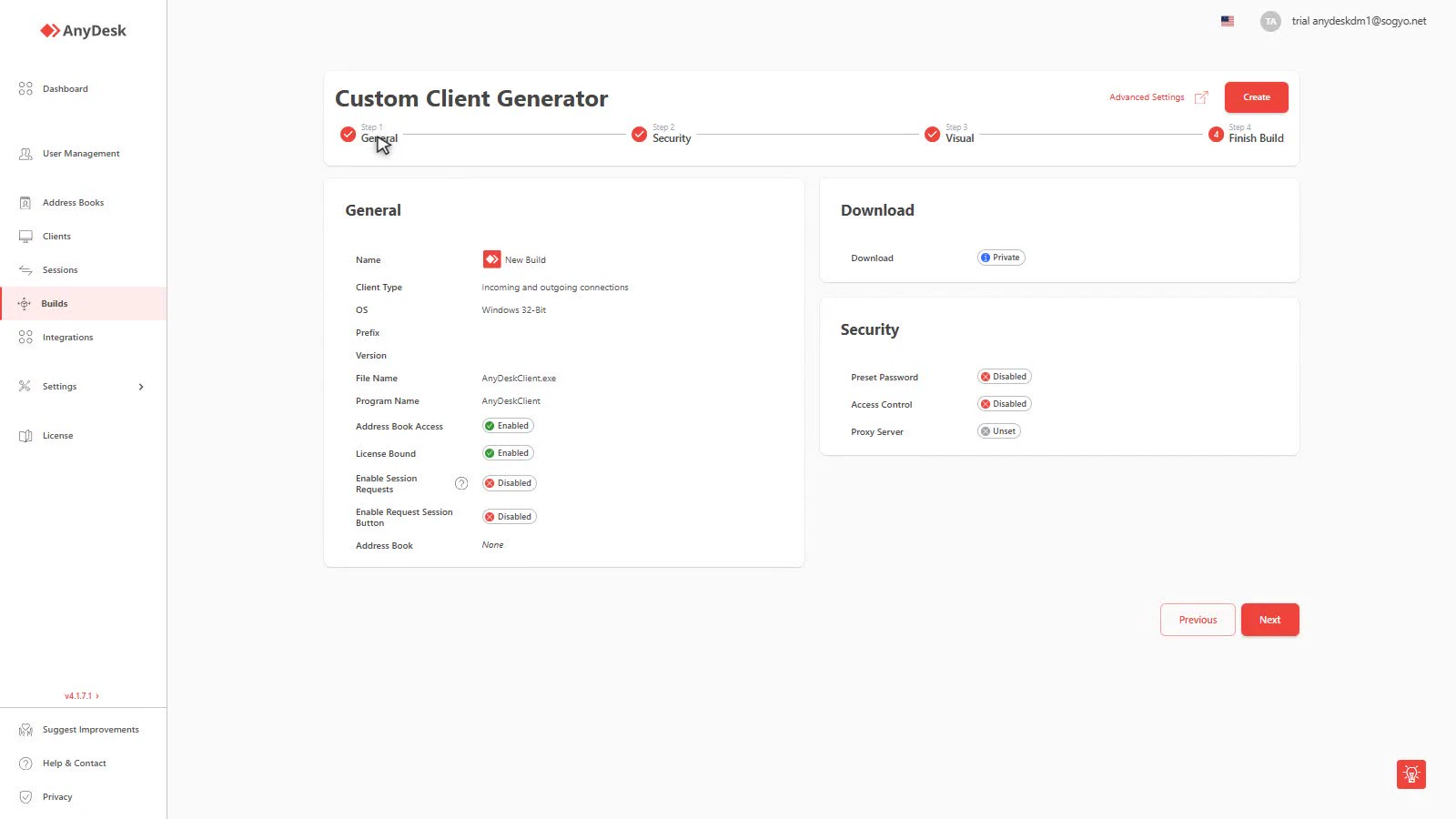
Video tutorial
This step explained on video:
General card
The summary of step 1. Check especially:
- Name — how it will appear in your Builds list (search for it by this name later).
- Client Type — connection direction (Incoming and outgoing connections = Bi-Directional). Make sure it matches the machine’s role.
- OS — platform and architecture (Windows 32-Bit, etc.).
- Prefix — the client identifier prefix.
- Version — the AnyDesk version that will be compiled.
- File Name / Program Name — the downloaded
.exeand the installed name. - Address Book Access — Enabled if the address book was left enabled.
- License Bound — the client is tied to your license.
- Enable Session Requests — Disabled if you chose the machine shouldn’t start requests.
- Enable Request Session Button — the “request session” button in the client.
- Address Book — the book the machine will be added to on install (None if you didn’t configure one).
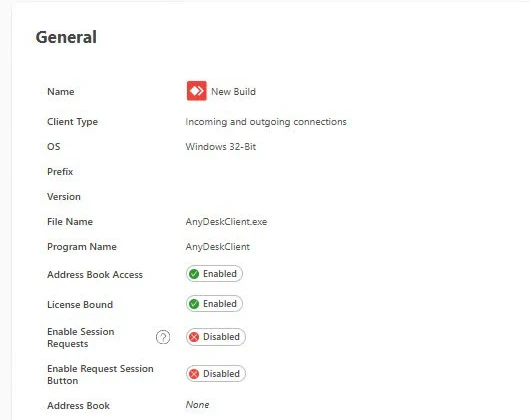
Real use case: if you expected the machine to register in the “HQ” address book and it says None here, go back with Previous to the General step and configure Add to Address Book — after Create it’s too late for machines that already downloaded.
Download card
- Download — Private (only users with an account on your license) or Public (unique URL downloadable by anyone who has it).
Real use case: if you’re going to publish the installer on your website for external customers, verify it says Public. If it stayed on Private, external customers won’t be able to download it.
Security card
- Preset Password — preconfigured unattended access password (Disabled if you didn’t set one).
- Access Control — Disabled if you didn’t configure the ACL; otherwise it indicates only authorized IDs will be able to connect.
- Proxy Server — Unset or the chosen configuration.
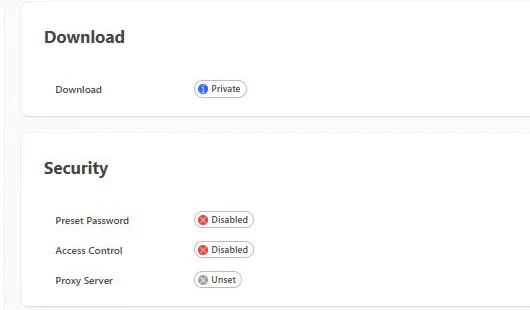
Real use case: Preset Password: Disabled on a build meant for unattended access means nobody will get in without an interactive request — if your servers have no operator, go back and set the password under Permission Profiles.
Create and the Builds list
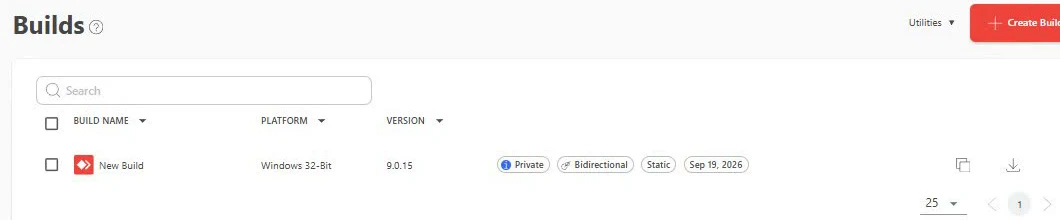
Clicking Create generates the build and it appears in the console’s Builds section. Each row shows:
- Build Name and the badges: Private/Public (download type), Bidirectional/Incoming/Outgoing (connection type), Static/Dynamic (management), and the creation date.
- The icons on the right let you download the installer and copy/manage the build.
What comes after Create:
- Download the installer from the list or share the link (if Public).
- Install on a test machine before mass distribution.
- If the build is Dynamic, any later edit propagates by itself; if it’s Static, you’ll have to redeploy.
MyAnyDesk in detail series
This guide is part of the series on the my.anydesk.com Custom Client Generator:
Click to continue reading
- Published at