Create a Custom AnyDesk Client - General Step
The General step of the my.anydesk.com Custom Client Generator defines the client’s base identity: which platform it compiles for, who can download it, how it behaves on install, and which parts of the interface stay enabled for the end user.
This guide explains every option in the General step, what it does and when to use it.
Video tutorial
This step explained on video:
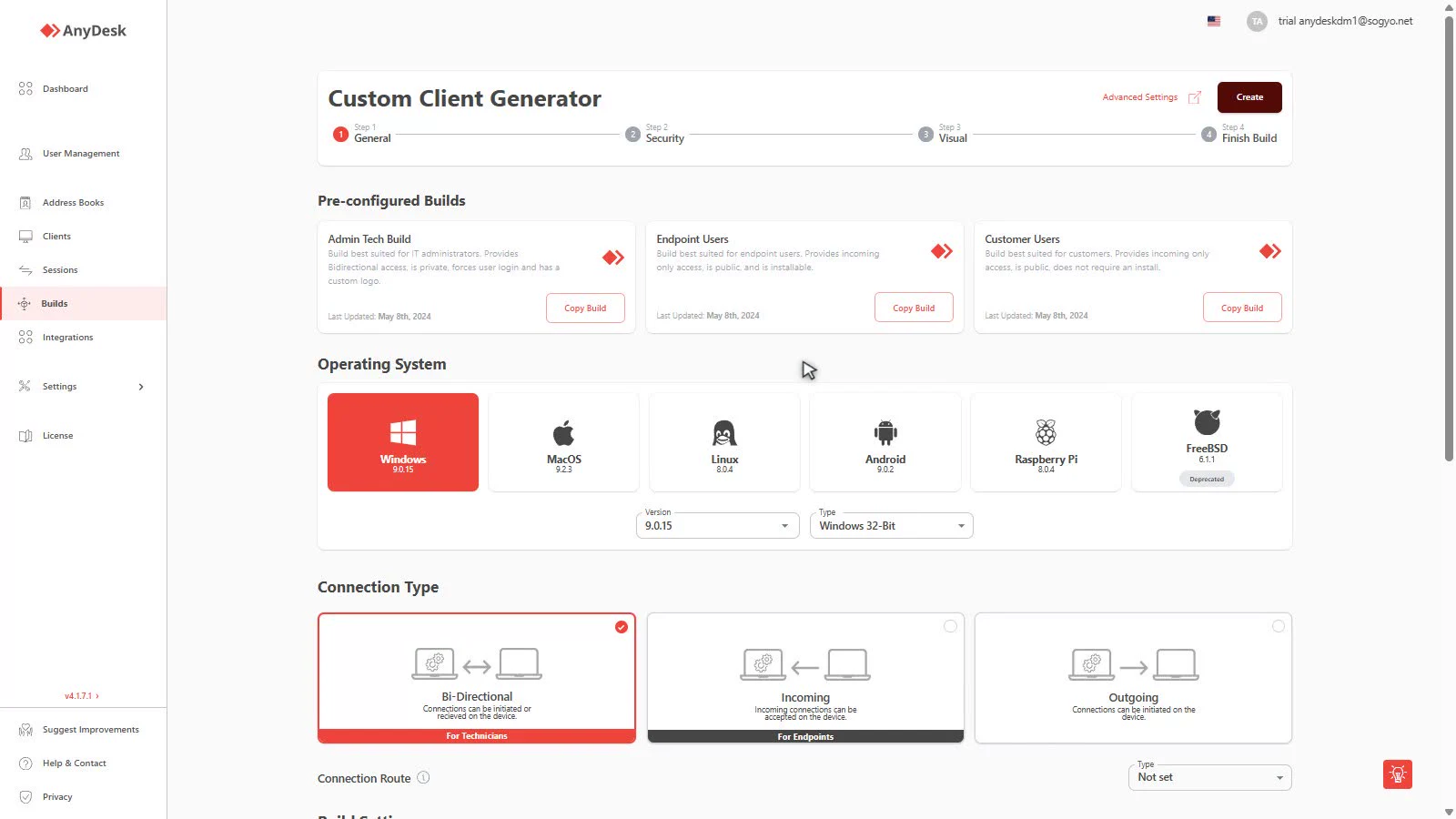
Pre-configured Builds
What it is: three ready-made templates to copy before configuring from scratch:
- Admin Tech Build — bidirectional access, private, requires user login and includes a custom logo. Built for IT administrators.
- Endpoint Users — incoming connections only, public and installable. Built for the machines that receive support.
- Customer Users — incoming connections only, public, no installation (portable). Built for one-off external customers.
Real use case: if 80% of your deployment is “users who only receive support”, copy Endpoint Users and just adjust the logo and address book — you skip walking through the wizard’s 20+ options.

Operating System
What it does: defines the generated client’s platform: Windows, macOS, Linux, Android, Raspberry Pi or FreeBSD. Below it you’ll find Version (client version) and Type (architecture, e.g. Windows 32-bit).
Important: the options available in the following steps change per OS — for example, Allow Installation and Program Name only apply to Windows.
Real use case: a mixed deployment generates one build per platform: Windows for workstations, Android for field devices, Raspberry Pi for signage. Keep the same base Build Name with a platform suffix (“Support-Win”, “Support-Android”) to find them quickly in the list.

Connection Type
What it does: defines the direction of the client’s connections:
- Bi-Directional — the device can start connections to others and also receive them. The UI labels it For Technicians: for example, a specialist who trains customers with AnyDesk and also receives helpdesk support on their own machine.
- Incoming — only receives connections (For Endpoints). The choice for most company users: the helpdesk connects in, resolves and leaves; the user never controls anyone else’s machine.
- Outgoing — only starts connections (For Endpoints). Ideal for support agents who only need to attend remote customers, without anyone controlling their device.
Below it, Connection Route lets you force the connection routing (e.g. through AnyDesk’s own network) in advanced configurations.
Real use case: the same company often needs all three: technicians on Bi-Directional, employees on Incoming, and an info kiosk on Outgoing. Three builds, one wizard each.

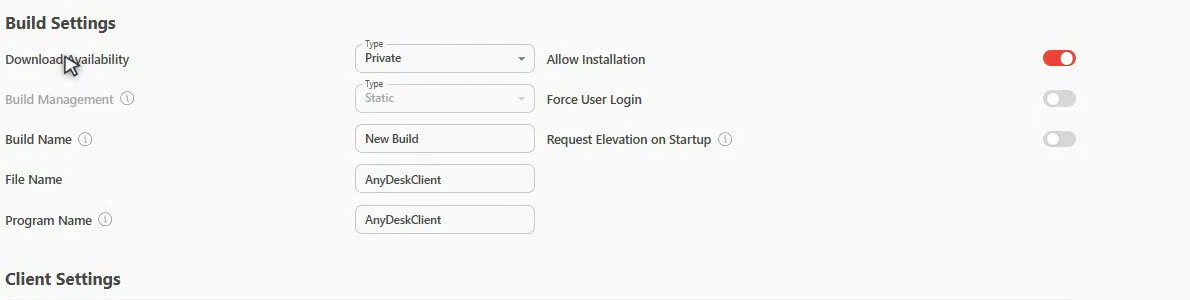
Build Settings
Download Availability — who can download the installer:
- Private: only users with an account tied to your license (login on my.anydesk.com).
- Public: generates a unique URL anyone can use, no login required. The URL stays the same even if you edit the build later.
Real use case: Public is what you publish on your website so external customers download the client and get support from your technical team. Private is for controlled internal distribution.
Build Management — how configuration changes propagate:
- Static: if you edit the build, you must redeploy or reinstall the client on every device for the change to apply. Full control, but expensive at scale.
- Dynamic: changes replicate automatically to all linked clients in real time. Requires Central Management.
Real use case: with 300 installed machines, Static means redeploying on every tweak; with Dynamic, adding an ID to the ACL today updates every machine without touching them.
Build Name — the internal name you’ll use to identify this configuration in the Builds list. Only you see it; use something descriptive like “Helpdesk-BiDir-Win”.
File Name — the name of the downloaded executable (AnyDeskClient.exe by default). Rename it to something recognizable: Support-MyCompany.exe reduces user distrust.
Program Name — the name it appears under once installed on the system (Start Menu, Control Panel). Windows only.
Allow Installation — allows installing the client (Windows). Without it, the client only runs in portable mode.
Real use case: on managed machines you want installation (persistence, start with the system). For an external customer who only needs support once, a build without installation is cleaner: run it, get support, close it, nothing left installed.
Force User Login — forces users to sign in with their account to use the client (AnyDesk 7.1+).
Real use case: on corporate internal clients, login ties each machine to a real user — auditing and per-user licensing, not per machine.
Request Elevation on Startup — shows the UAC dialog at launch to obtain administrator privileges.
Real use case: if your support includes installing software or touching system settings, elevation at startup prevents the session from starting limited and forcing a restart halfway through.
Client Settings
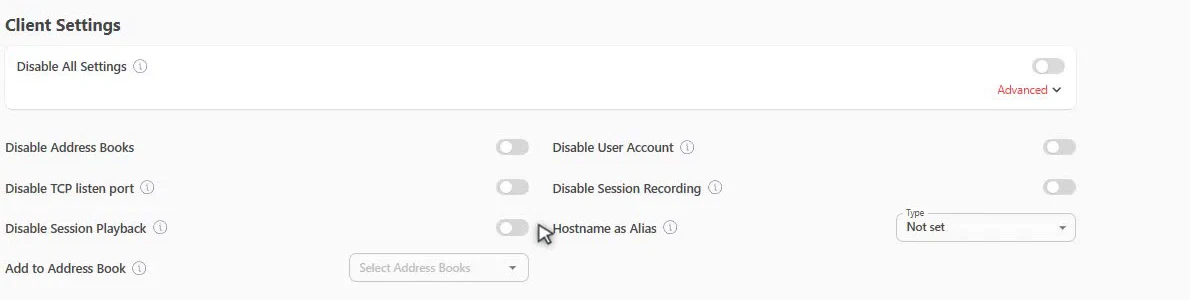
Defines which parts of the client interface stay available to the end user:
| Option | What it disables | When to use |
|---|---|---|
| Disable All Settings | The entire settings menu | Clients handed to non-technical users — nothing to break |
| Disable Address Books | The address book | Machines that only receive support and don’t need contacts |
| Disable TCP listen port | The TCP listening port | Avoids the Windows Firewall prompt on first launch |
| Disable Session Playback | Playing back local recordings | When recording isn’t allowed by policy |
| Disable User Account | User login in the client | Kiosks and shared machines without personal accounts |
| Disable Session Recording | Recording sessions on the machine | No-local-recording policy |
| Hostname as Alias | Registers the machine’s hostname as alias | Identify machines by real name instead of numeric ID |
| Add to Address Book | Adds the machine to an address book on install | Automatic organization by site or customer |
Real use case: if you create a build for headquarters together with an address book called “HQ”, every machine installing that build automatically appears in that book — the technician finds it without asking for IDs over the phone.
Next step
With the general settings defined, click Next for the Security step: interactive access, ACL, permission profiles and unattended access passwords.
Need AnyDesk licenses for your team? Sogyo is an official AnyDesk wholesale distributor in Latin America — we help you choose the right plan and deploy custom clients at scale.
MyAnyDesk in detail series
This guide is part of the series on the my.anydesk.com Custom Client Generator:
Click to continue reading
- Published at