Command-Line Interface
The AnyDesk Command-Line Interface (CLI) allows advanced users and IT administrators to automate installation, configuration, connection, and removal tasks. This page provides examples and common use cases for using the CLI with AnyDesk across supported platforms.
When to use the command-line interface
The CLI is useful for:
- Deploying AnyDesk to many devices without manual setup
- Integrating AnyDesk into your existing IT management tools
- Automating tasks such as installation, licensing, password setup, and removal
- Starting remote sessions using scripts or automation tools
Deploying AnyDesk automatically
Platform: Windows
You can use CLI commands with software deployment tools to install and configure AnyDesk on multiple devices, without manual setup on each machine.
For large-scale deployments, we recommend preparing:
- A custom MSI Installation Package
- Preconfigured Customer Module or Service Module of our
.exefiles
🦉 You can generate and customize these modules using the custom in my.anydesk.
Standard module types
| Module | Description |
| Default EXE | Full version from anydesk.com. Can start and receive connections. |
| Customer Module EXE | Can only receive connections. |
| Service Module EXE | Can only initiate connections. |
These modules can be deployed via script using commands from the installation commands or through your deployment software.
The following example batch script installs AnyDesk, registers the license key, and sets a password:
@echo off
AnyDesk.exe --install "C:\Install\AnyDesk\Here" --start-with-win --silent --create-shortcuts --create-desktop-icon
echo licence_keyABC | "C:\Install\AnyDesk\Here\AnyDesk.exe" --register-licence
echo password123 | "C:\Install\AnyDesk\Here\AnyDesk.exe" --set-password
Dos
Copy
Removing AnyDesk
You can uninstall AnyDesk either manually or by using the CLI commands.
Using --uninstall
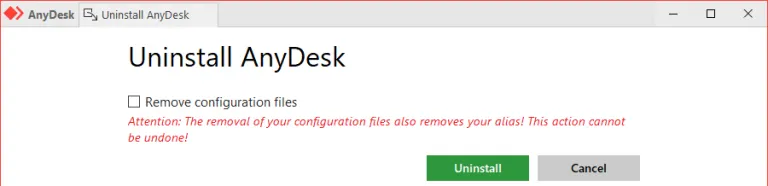
The --uninstall parameter will start the uninstallation process for the AnyDesk client.
anydesk.exe --uninstall
Plain text
Copy
This opens a user interface to guide the uninstallation process.
Using --remove for silent removal
For automated or script-based removal without user interaction, use the --remove parameter. To ensure the process runs silently without showing any messages or prompts, add the --silent option:
anydesk.exe --silent --remove
Plain text
Copy
🚨 IMPORTANT
--removeonly uninstalls the application but does not delete residual files or user data. To fully clean up, manually delete the following directories or include them in your script:
C:\Program Files (x86)\AnyDesk%appdata%\AnyDesk%programdata%\AnyDesk
Connecting via CLI
You can start a session using CLI parameters. This is useful for automation or if you’re integrating AnyDesk with other systems. Use connection parameters as described in the Connection Commands.
Customizing desktop shortcuts
CLI Connection commands can also be used to modify desktop shortcuts created by AnyDesk.
To do this:
-
Right-click the desktop shortcut and select Properties.
-
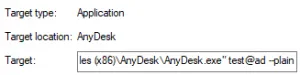
In the Target field, add the desired parameter at the end. For example:
"C:\Program Files (x86)\AnyDesk\AnyDesk.exe" 123456789 --plainPlain text
Copy
Application target details for AnyDesk, including location and executable path information.
A tool that allows administrators and advanced users to automate installation, configuration, and client management tasks using command-line commands.
A downloadable file that contains the necessary components to install the AnyDesk application on a device.
Click to continue reading
- Published at