Easy and Helpful Remote Device Troubleshooting: Step-by-Step Guide and Essential Information
PDFConnecting to a remote device is easy and helpful for problem-solving. Here, we will show you how to do it and what useful information you can obtain.
Step 1: Establish Connection
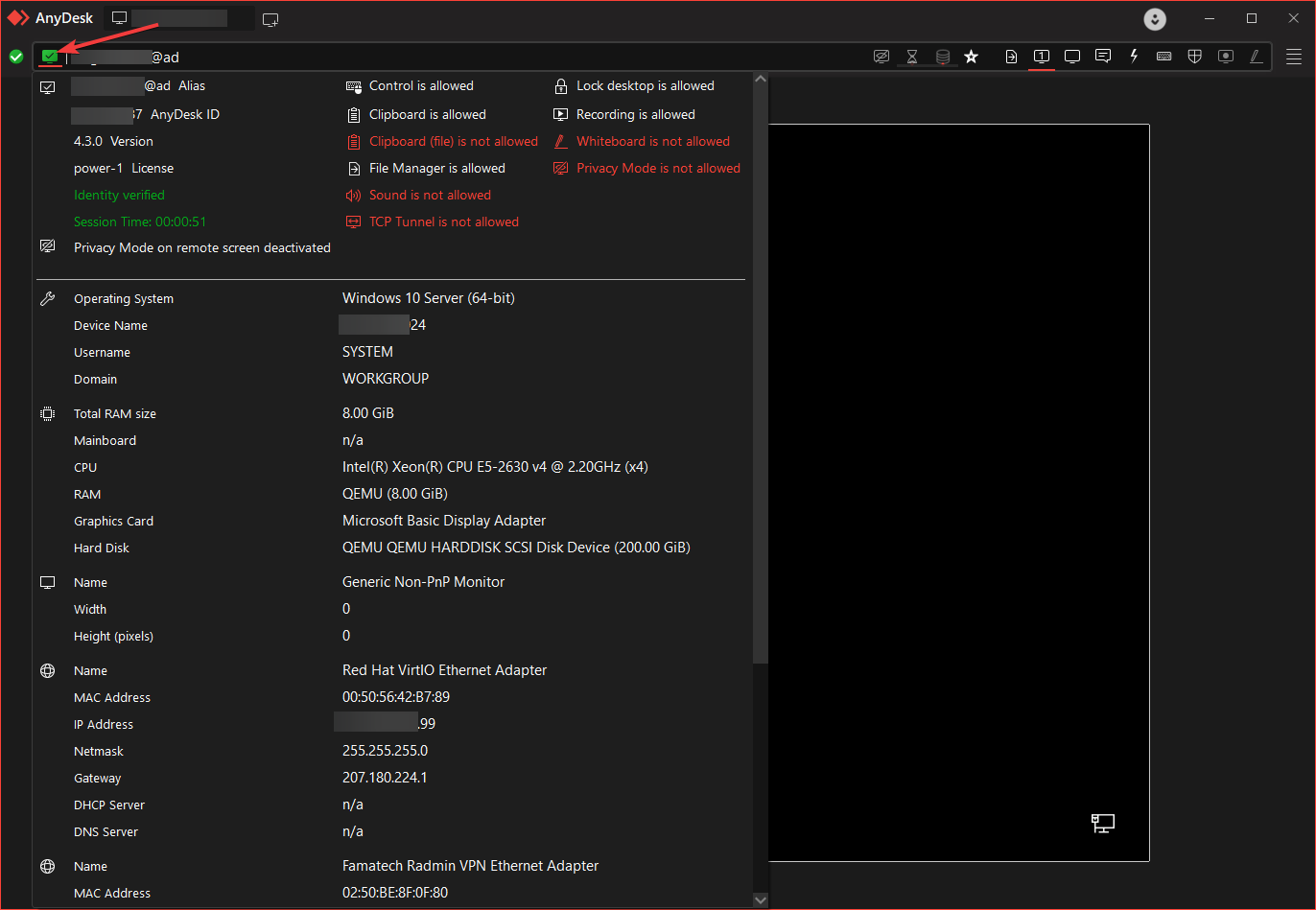
First, establish a connection with the remote device. You can do this by clicking on the green screen icon, as shown below:
Step 2: Important Details
Once you are connected, click on the green screen icon to display essential details. Here, you will find valuable information about permissions, hardware, and network settings of the remote device. This step is especially useful for diagnosing possible issues and optimizing the connection experience.
Important: Please note that this information is only available during the connection and cannot be viewed on my.anydesk.com at this time.
Great! Now you are equipped with the necessary information to make the most of your remote connection and efficiently resolve any inconvenience.
Click to continue reading
- Published at