You can view a list of all sessions created between local and remote devices in my.anydesk II.
View all sessions
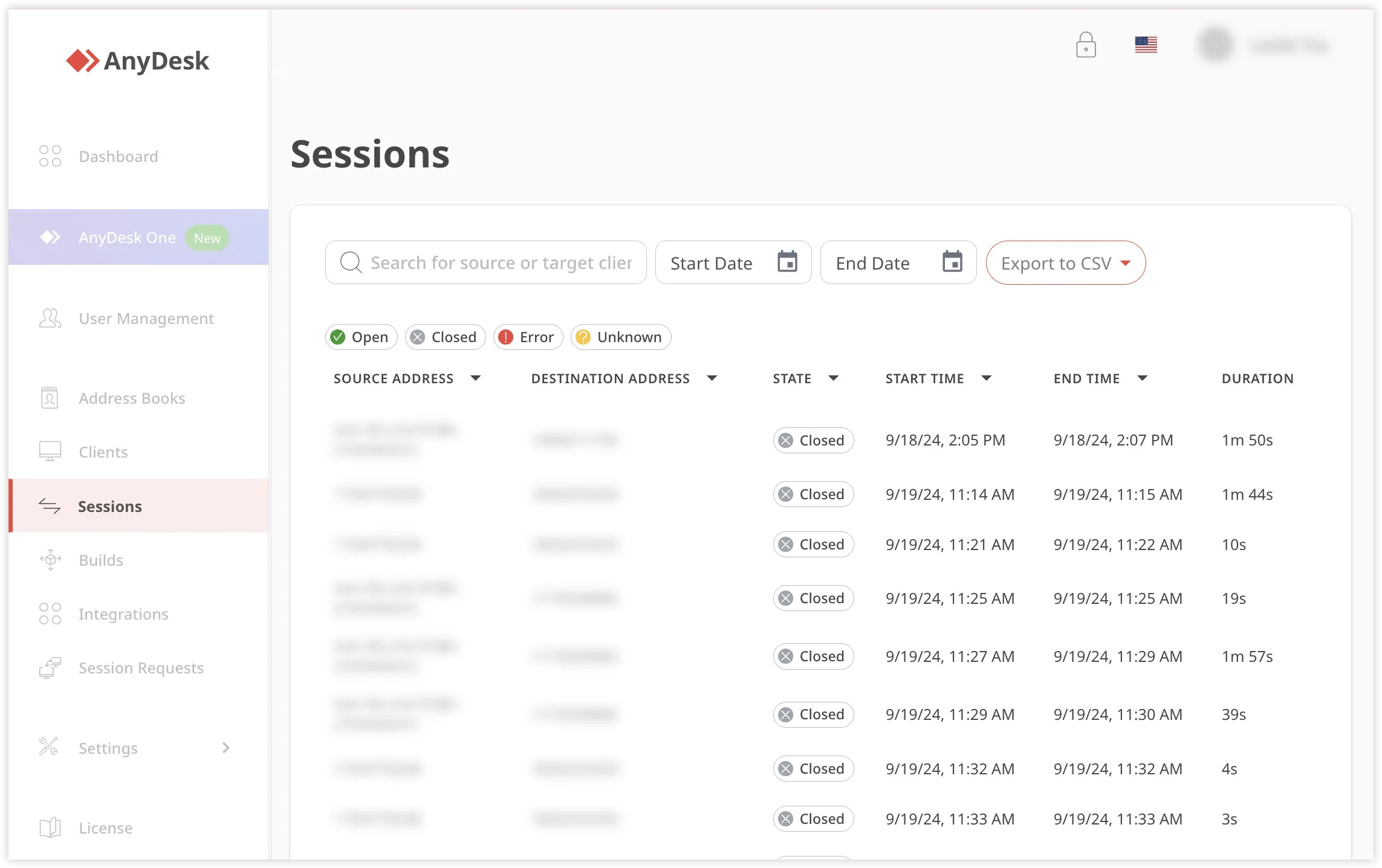
Go to the Sessions tab and view the following details of each connection created between two clients:
To view the list of all sessions, go to the Sessions tab. Each session displays the following information:
Source address - the AnyDesk address of the device that started the session.
Destination address - the AnyDesk address of the device that received the session request.
State - the current Session Status.
Start time - the exact time when the session started.
End time - the exact time when the session ended. AnyDesk session management interface displaying session details and status information.
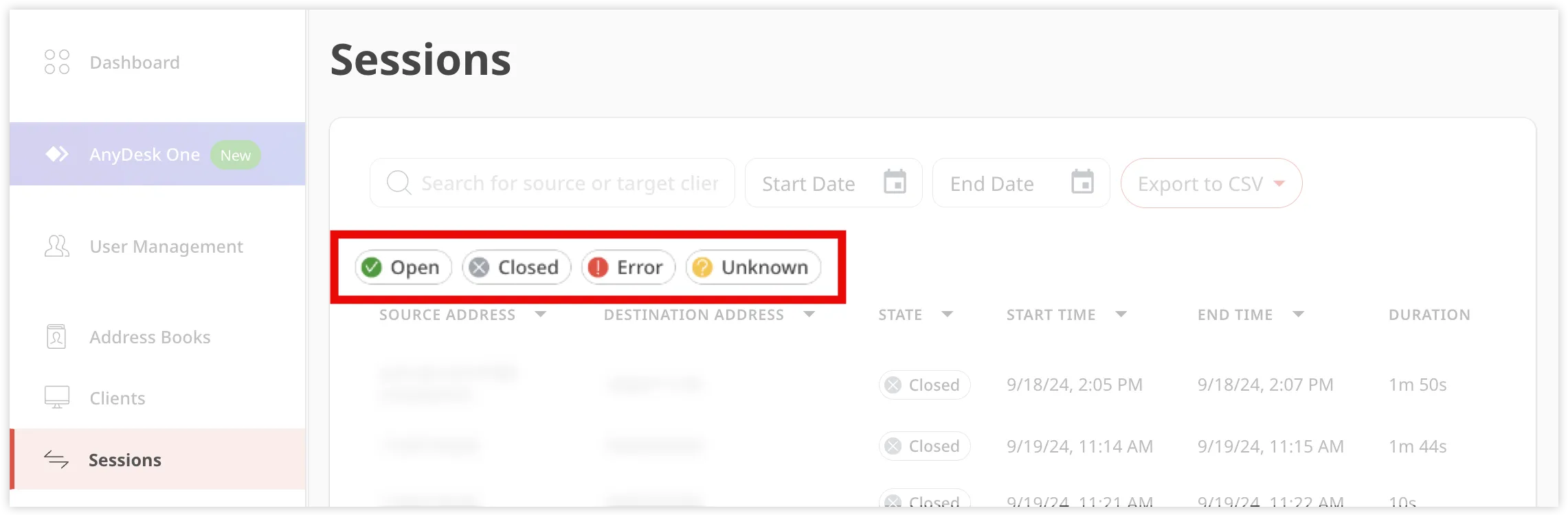
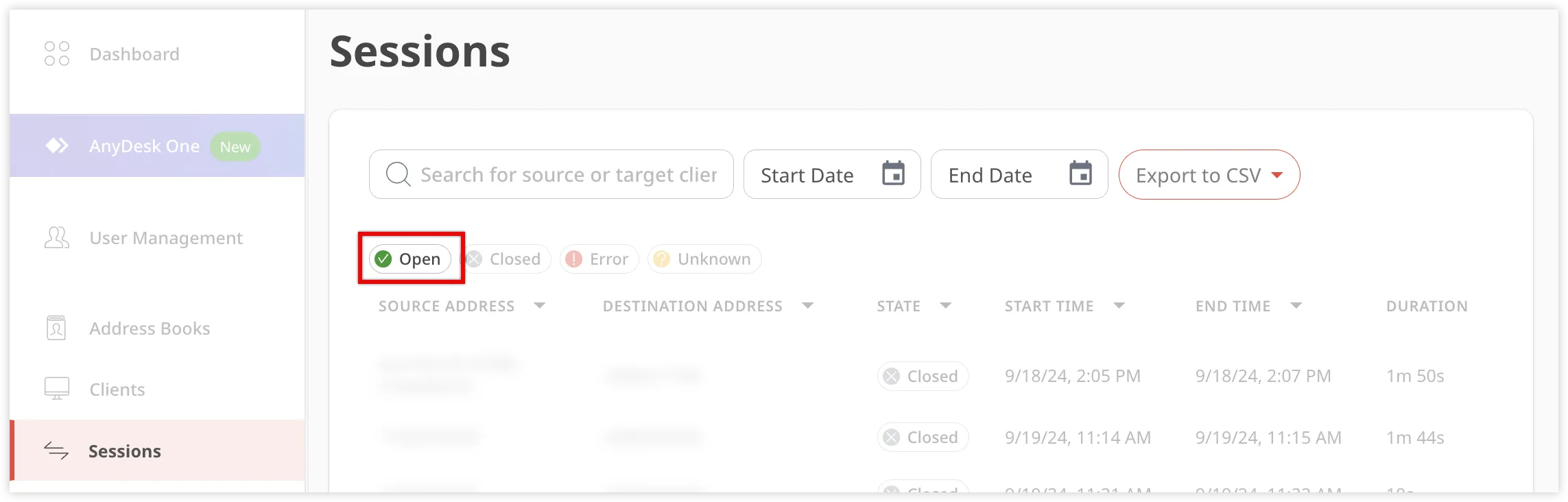
You can filter sessions by status using the filter options above the sessions list.
Session statuses displayed include Open, Closed, Error, and Unknown for tracking.
Session filtering options
View session details
To view detailed information about a session:
Select a session from the list.
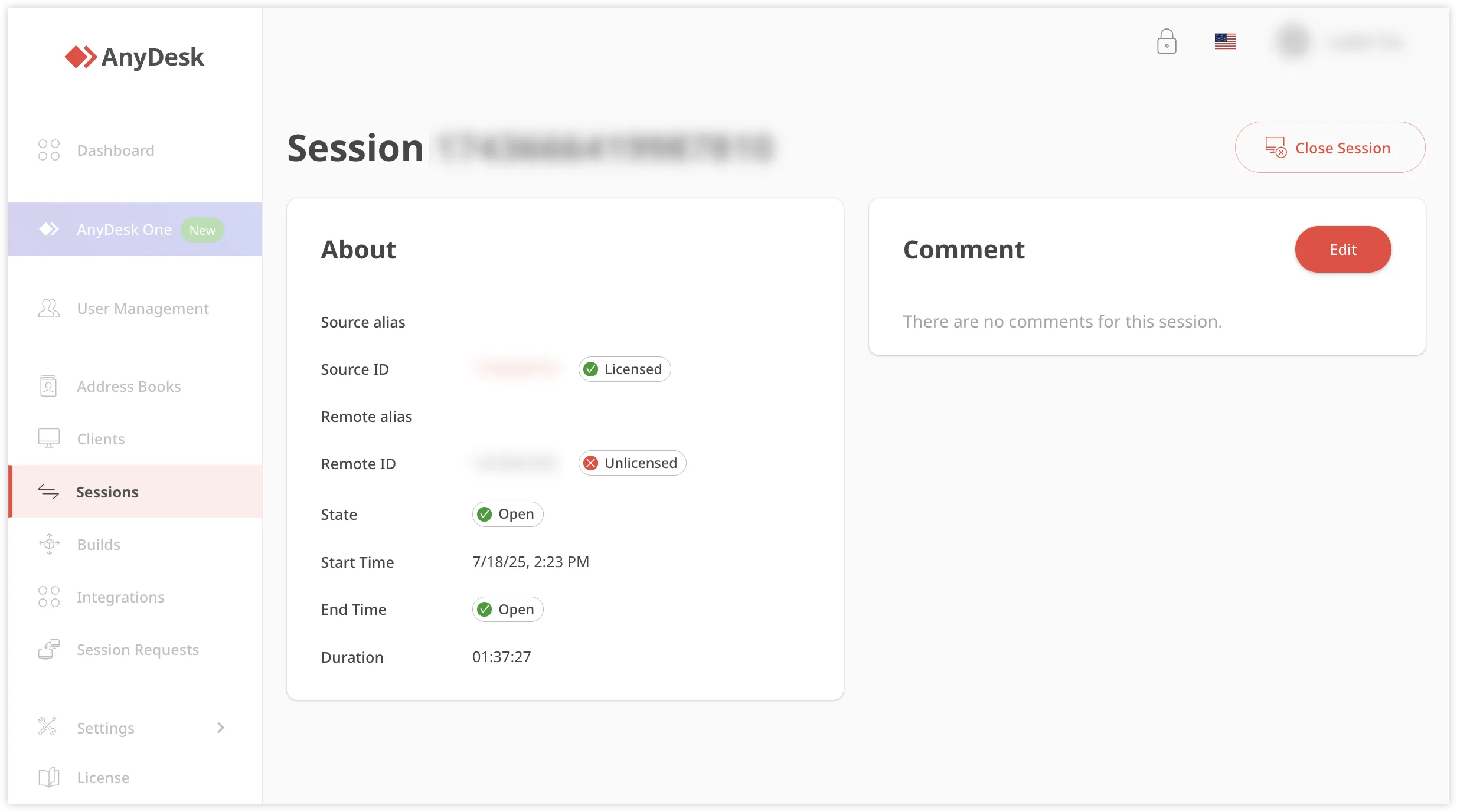
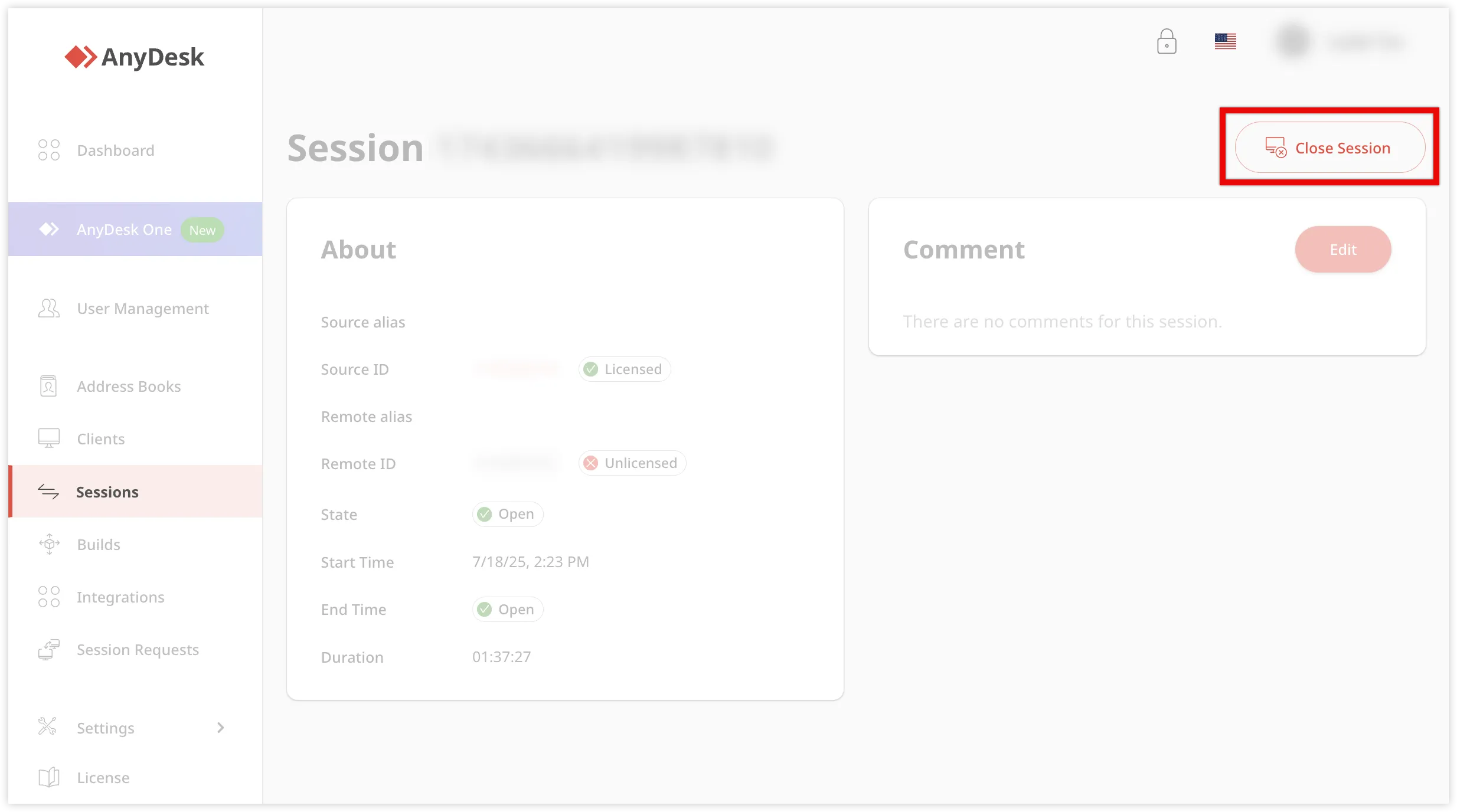
The session details page displays the session duration, license status of local and remote client, and any comments entered in the Comments section. AnyDesk session details showing licensed and unlicensed status with session duration.
Close an active session
You can close an active session from the my.anydesk II management console. Alternatively, you can also end it directly from the AnyDesk client.
🦉 For more details on how to end sessions in the AnyDesk client, see this article.
To close an active session:
In the Sessions tab, below the search bar, click Button labeled ‘Open’ with a checkmark indicating a successful action. to filter your active sessions.
Select the session you want to close.
On the opened page, click Close Session. AnyDesk session details with options to close the session.
In the confirmation window, click Disconnect session.
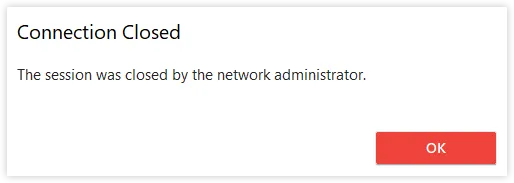
After the session is closed, you’ll see a confirmation message in my.anydesk II: Session closed successfully. On the local device, you’ll see a message indicating that the session was closed by the network administrator. Connection closed message indicating session termination by the network administrator.
Indicates the current state of a session request in AnyDesk, such as open, waiting, ready, connected, closed, or expired.