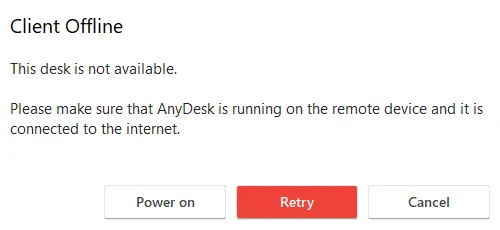
Client Offline
Error
Cause
The Client Offline message appears when AnyDesk on the remote device cannot connect to the AnyDesk network.
This error may occur if:
- The remote device is turned off, in sleep mode, or offline.
- AnyDesk is not running on the remote device.
- Antivirus or firewall settings are blocking AnyDesk traffic.
- The device clock is incorrect or not synchronized with internet time.
- The AnyDesk app is outdated.
Solution
To resolve the error:
- Turn on the remote device. If supported, you can also use Wake-on-LAN (click Power on in the dialog).
- Check the internet connection. Make sure the remote device is online and stable.
- Start AnyDesk. Verify the AnyDesk app is running on the remote device.
- Update AnyDesk. Install the latest version on both local and remote devices.
- Allow AnyDesk through security software. Configure antivirus or firewall settings to permit AnyDesk traffic. For more information, see Configure firewalls for AnyDesk.
- Correct the system clock. Ensure the device time is accurate and synced with internet time.
- Check network connectivity. Confirm the device is connected to the AnyDesk network. For more information, see Disconnected from the AnyDesk Network.
If the problem continues, contact AnyDesk Support.
A feature that allows you to remotely wake up a sleeping or powered-off PC. You can control an offline device remotely by waking it up before creating a connection. To wake up a turned-off PC, you need another turned-on device within the same network.
Click to continue reading
- Published at