AnyDesk enables Audio Transmission from the remote device to the local device during a session. This allows users to hear sounds from the remote system as if they were physically present.
To open the audio settings:
Open the AnyDesk app on your device.
In the upper-right corner, click image.png and select Settings.
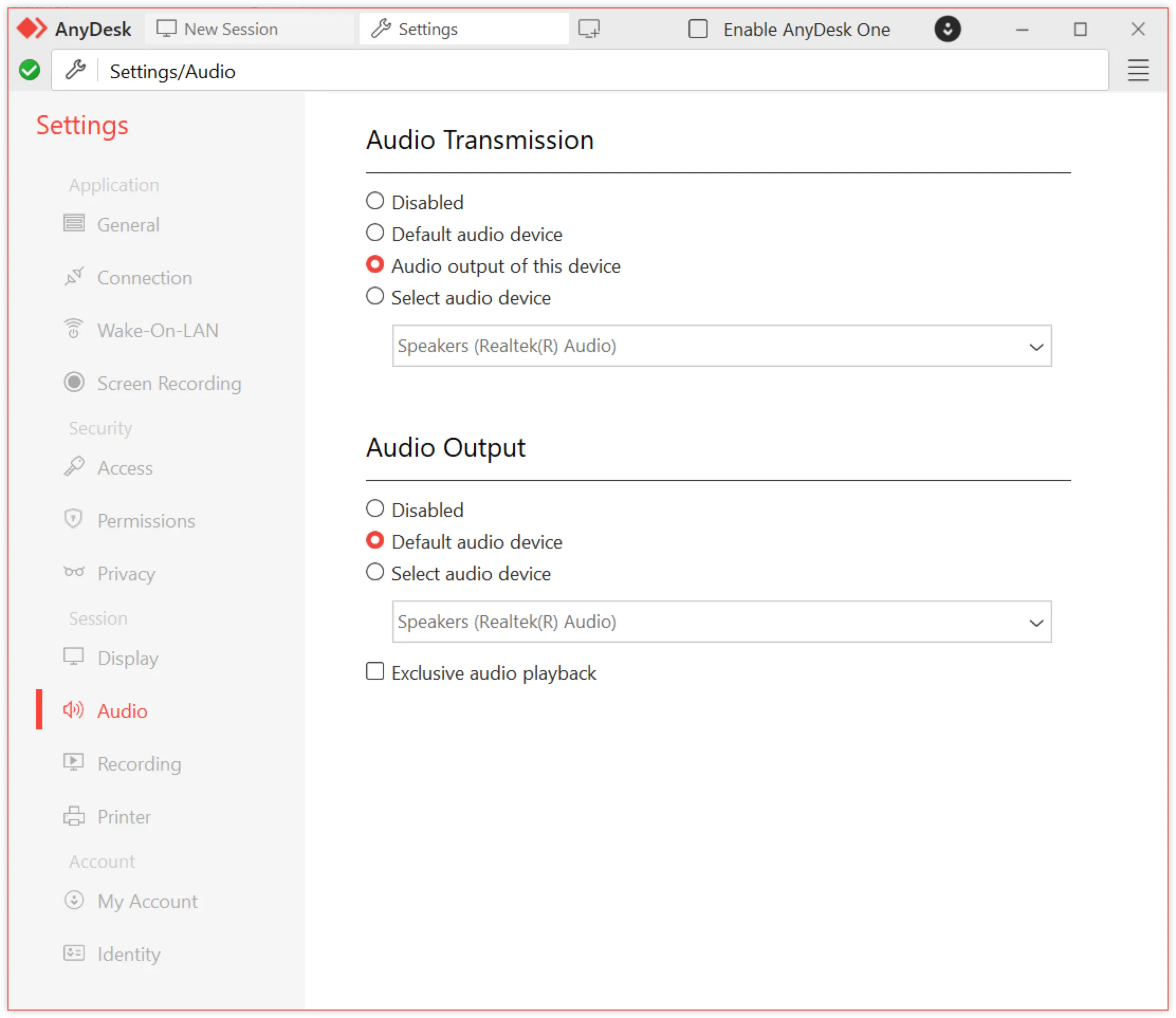
In the Settings window, navigate to Audio.
AnyDesk audio settings showing transmission and output options for devices.
During an active session, audio transmission can be enabled or disabled:
on Windows - via the Permissions menu
on macOS and Linux - via the Menu in the AnyDesk toolbar
Configuring audio transmission
Platform: Windows
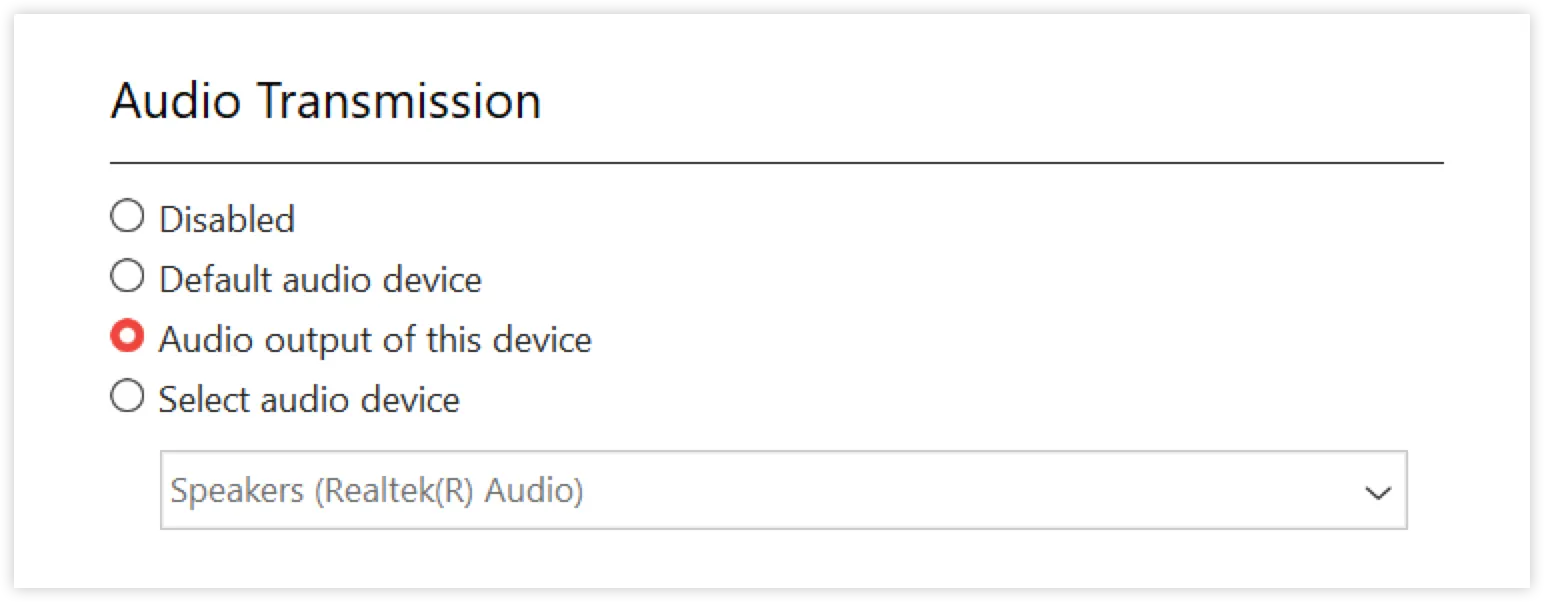
The AudioTransmission setting determines which audio input source AnyDesk uses when a session is initiated. By default, AnyDesk uses the system’s standard audio device.
Audio transmission settings with options for device selection and output configuration.
Option
Description
Disabled
No audio is transmitted.
Default audio device
Sends audio from the default system input device.
Audio output of this device
Transmits all system audio output of the remote device.
Select audio device
Select a specific input device (e.g., microphone) for transmission.
Configuring audio output
Platform: Windows
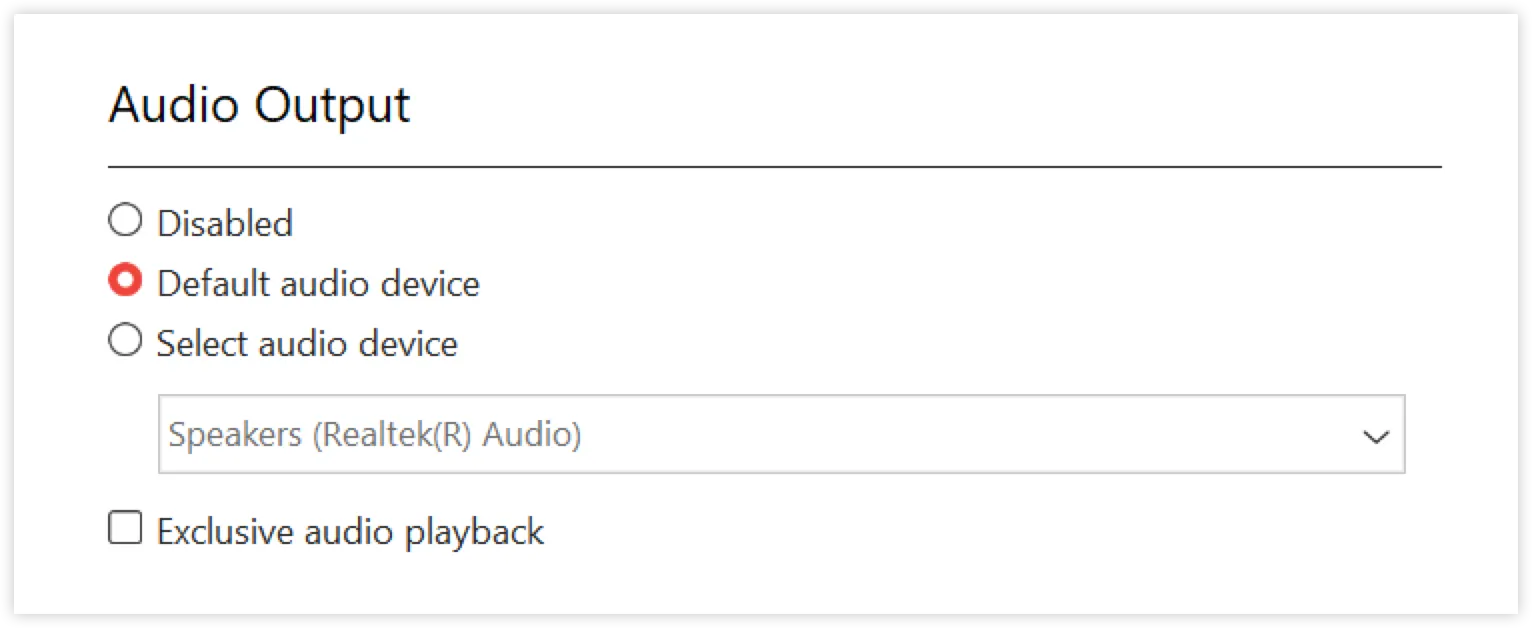
The Audio Output setting defines where the audio is played on the local device when initiating an outgoing session. AnyDesk uses the system’s default output device unless configured otherwise.
Audio output settings showing default device selection and options for audio playback.
Option
Description
Disabled
No sound is played.
Default audio device
Plays through your system’s default output device.
Select audio device
Select a specific output device.
Exclusive audio playback
Select the checkbox to minimize audio latency by exclusively using AnyDesk audio, other audio sources on your system will be muted.
Windows audio settings
If audio isn’t working correctly, verify your system settings:
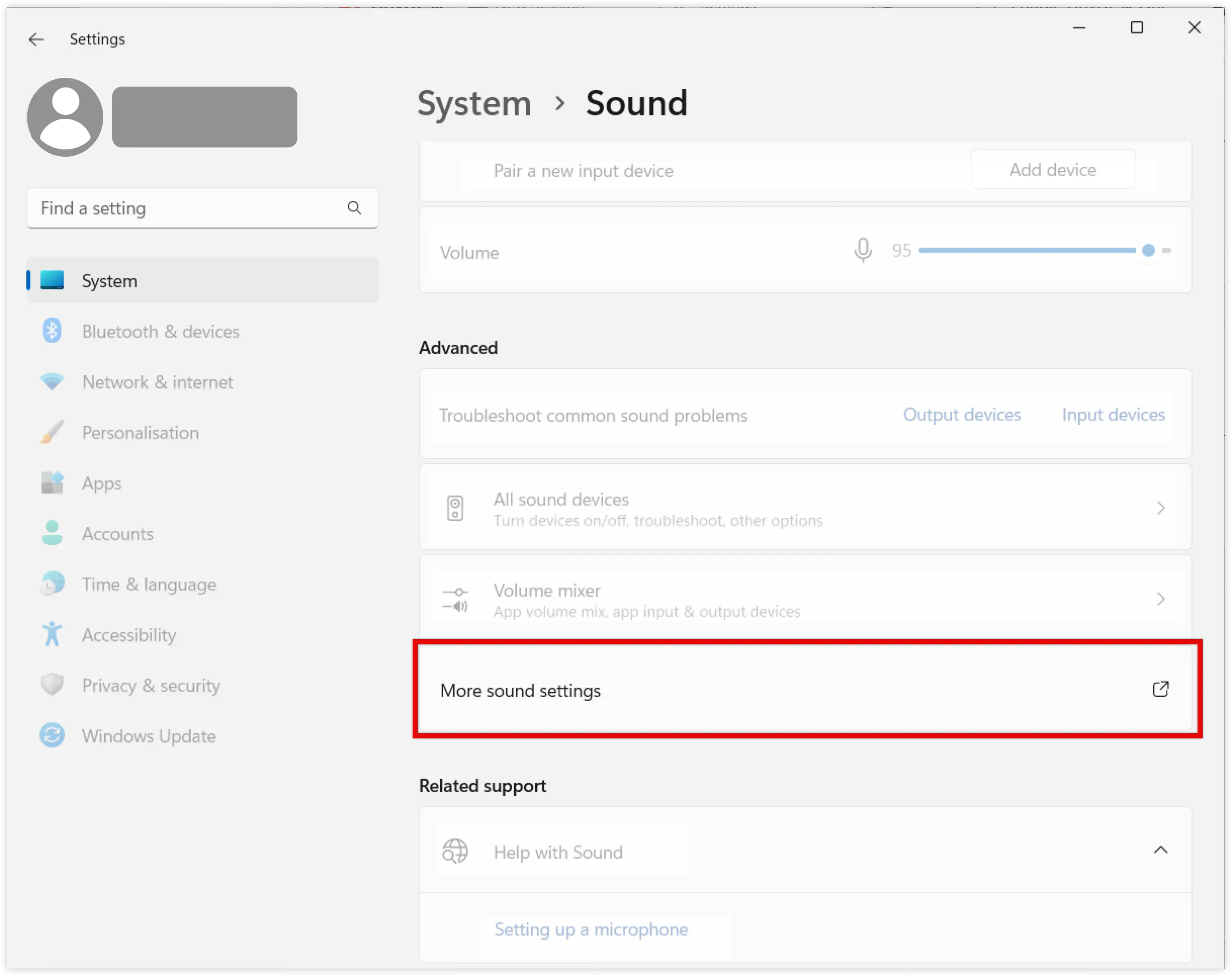
Go to Settings > System > Sounds.
On the opened page, go to the Advanced section and click More sound settings. 💡 On older Windows versions, clickSound Control Panel. Settings menu showing sound options with highlighted ’More sound settings.
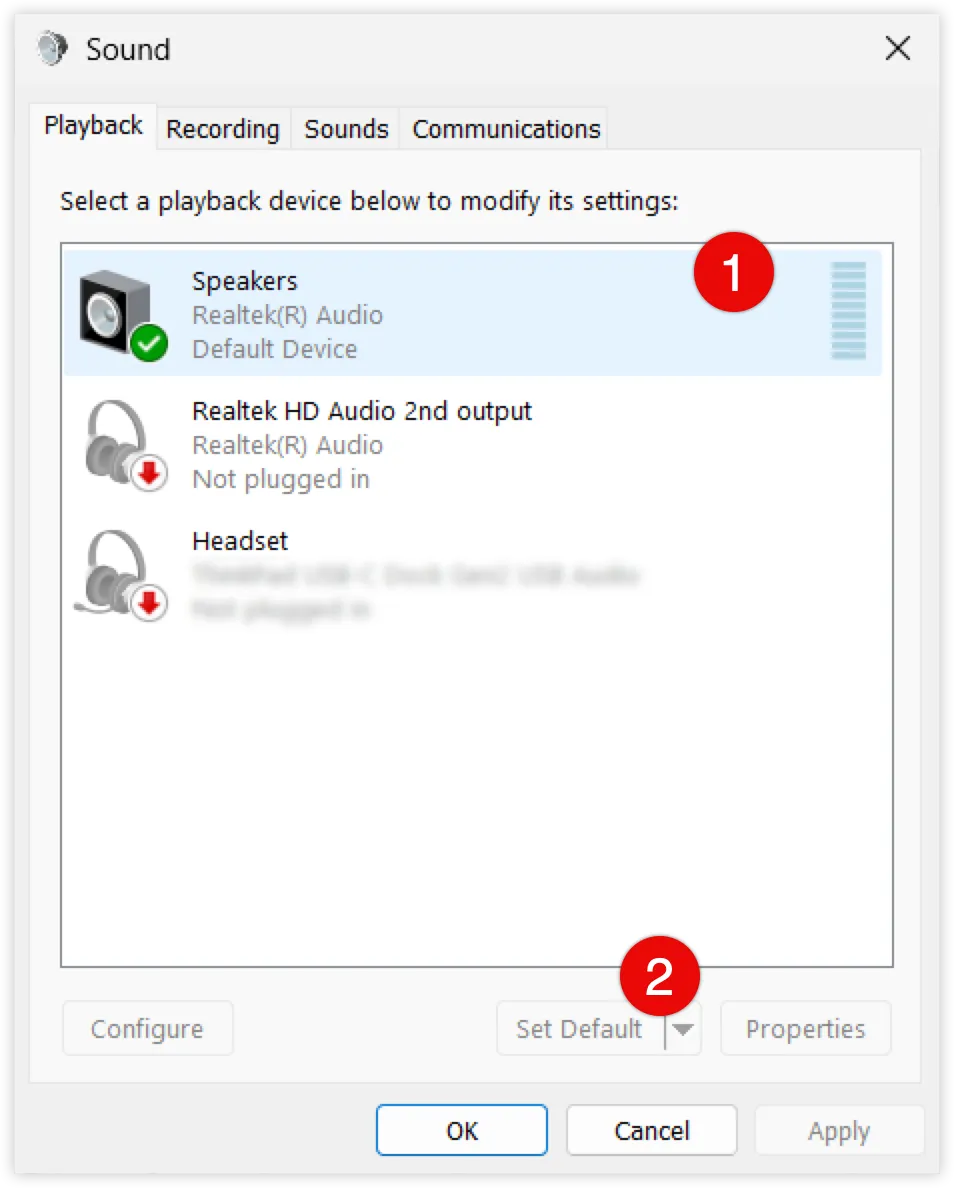
In the Playback tab, ensure your desired output device is set as the Default. Sound settings window showing default playback device and options for audio devices.
Audio output selection in AnyDesk depends on these default settings.
The ability to transmit audio from the remote device to the local device during a session, allowing users to hear sounds from the remote system.