AnyDesk for Windows Server
AnyDesk lets you connect to Windows Server devices, including specific server user accounts, though this requires some setup and awareness of limitations
🚨 IMPORTANT
If you’re connecting to a non-console account using AnyDesk, that user must already be logged into the session on the server. This typically requires an RDP session to be open beforehand so display drivers are active and the remote screen is accessible.
Connection methods
AnyDesk supports four connection types to Windows Server:
| Format | Description |
| ID | Prompts you to choose a user session or the console session at connect. |
| ID/ | Connects to the console session; shows login screen if no user is active. |
| ID/User | Connects directly to the specified user account. |
| ID/Domain/User | Connects to that domain user, useful when usernames repeat across domains. |
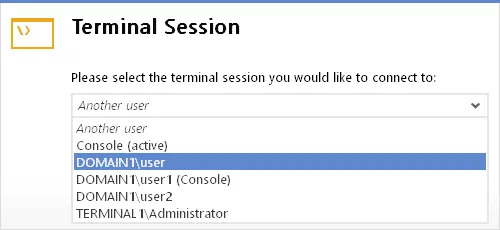
When connecting, you may see a dialog that lets you select the console or a specific user session. If using “ID/User” or “ID/Domain/User,” ensure the target session is already active.
💡 NOTE
Some Windows Servers have limited graphics capabilities. Installing the Mirror Driver from AnyDesk can greatly improve performance when rendering remote screens
Click to continue reading
- Published at