AnyDesk for iOS, iPadOS, and tvOS
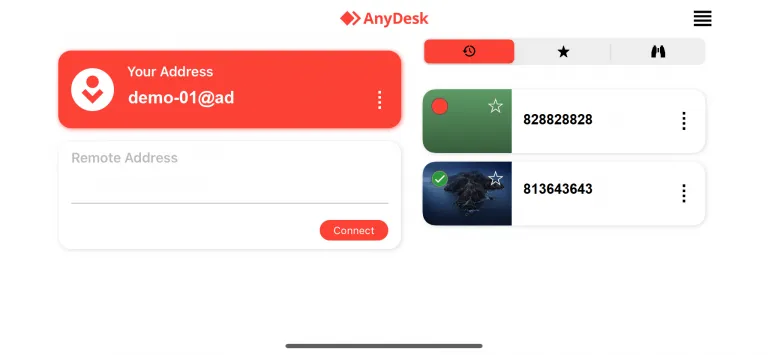
AnyDesk offers fast and efficient remote desktop access on iOS, iPadOS, and tvOS. The app is lightweight yet powerful and supports cross-platform connectivity, making remote sessions smooth and resource‑efficient.

System requirements
Device compatibility:
- iOS 11.0 or newer
- iPadOS 13.0 or newer
- tvOS 11.0 or newer
Remote view limitations:
- You can view iOS and iPadOS devices remotely from iOS 12.0 or newer.
- Remote viewing of tvOS devices is not supported.
🚨 IMPORTANT
Due to platform restrictions, direct remote control of iOS, iPadOS, and tvOS devices is not available.
Also note: Outgoing connections to iOS/iPadOS devices require a paid AnyDesk license.
Session menu
Swipe from either edge of your device’s screen during a session to bring up the session menu.
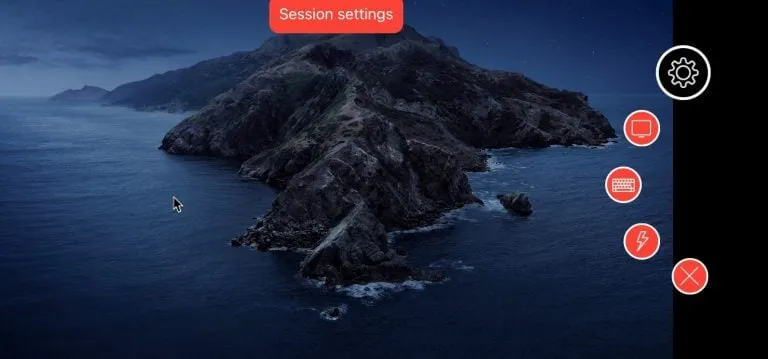
From the menu’s Settings icon, you can:
- Adjust transmission quality
- Enable or disable remote control
- Toggle clipboard synchronization
- Prevent the remote user from interacting during the session
- Choose input method: touch or touchpad
- Enable screen privacy mode
- Show or hide the remote cursor
Exiting the AnyDesk app on your iOS/iPadOS device will automatically close the session (“Your session will be closed in 5 seconds”).

Additional actions
-
Switch between multiple monitors if the remote device has multiple displays
-
Display the virtual keyboard, and toggle between standard and special input modes (e.g. F-keys, CTRL)
-
Access features via the Actions menu:
- Chat with remote user
- Send
CTRL+ALT+DEL(Windows devices) - Capture a screenshot
- Request administrator rights elevation (UAC)
- View system information of the remote device
- Start or stop session recording
File transfer
File transfers and file browsing are available during sessions. For step‑by‑step instructions, see Manage and transfer files.
Send support information
To report issues on iOS, iPadOS, or tvOS:
- Open AnyDesk’s menu in the main window.
- Tap About AnyDesk.
- Choose Open AnyDesk log.
- Tap Send Email (upper-right corner) and include a description with the trace files.
Click to continue reading
- Published at