Add users to your organization
License: Ultimate-Cloud
Relevant for: Organization owner or Admin
You can create users individually or add multiple users simultaneously.
The Admin user provider allows organization owners or administrators to manually add users to their license in my.anydesk II.
🦉 For an overview of all user provider types, see this article.
Create a single user
To add an individual user to your organization:
-
Go to my.anydesk II and open the Users tab.
-
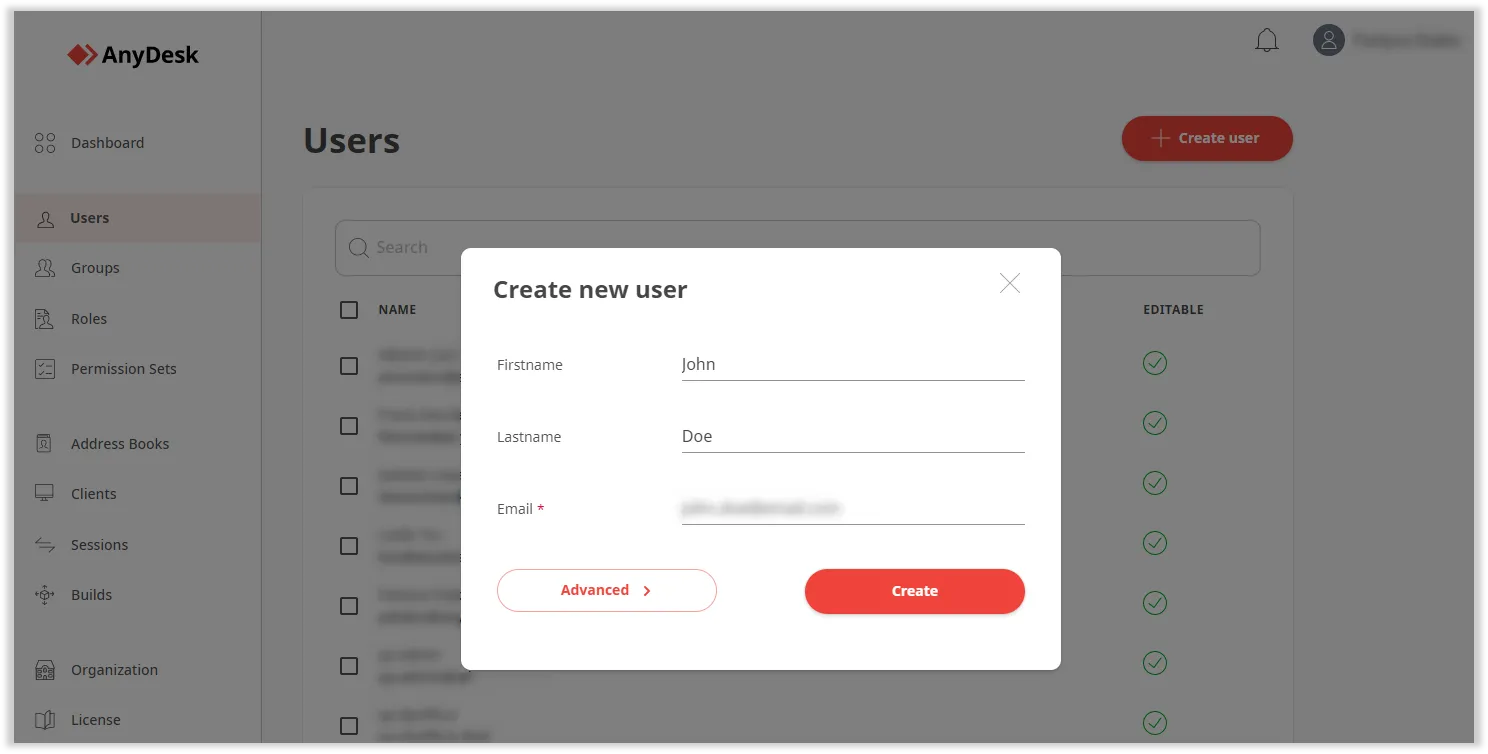
Click Create user.
-
In the pop-up window, provide the following information:
- First name (optional) - enter the user’s first name.
- Last name (optional)- enter the user’s last name.
- Email - enter the user’s email address.
create a user
-
Click Create.
The user will receive an email to verify their email address. After verification, they can sign in with SSO by using the organization ID.
Add multiple users
To add multiple users at once:
- Go to my.anydesk II and open the Users tab.
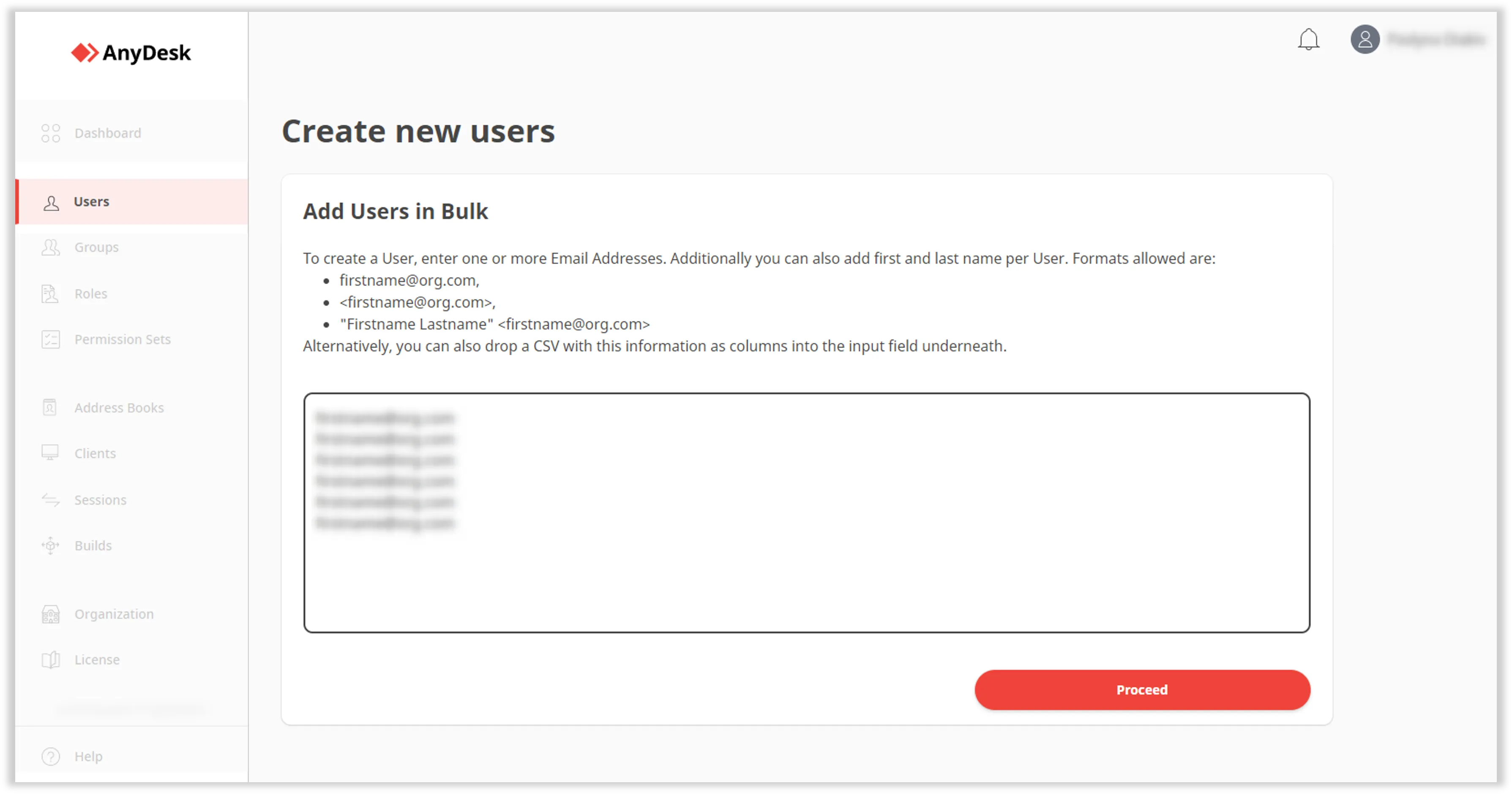
- Click Create user, and then select Advanced.
- On the next page, enter the email addresses of all users you want to add. 💡 You can also drag and drop a
.csvfile containing user email addresses.add multiple users - Click Proceed.
Each user will receive an email to verify their email address. After verification, they can sign in with SSO by using the organization ID.
Click to continue reading
- Published at