Migrate your account
If you already have an AnyDesk license and account on my.anydesk, you can migrate your account from my.anydesk I to my.anydesk II.
There is no need to create a new account for my.anydesk II, you can just move all your information to the new management console with one click.
my.anydesk II has been updated from my.anydesk I based on customers’ requests and feedback. my.anydesk II offers a wide range of possibilities within the AnyDesk management console.
💡 NOTE
The migration of your account only takes a few minutes. All client and session details, your license data, and Custom Client information will automatically be synced to my.anydesk II.
After the migration, any changes you make in my.anydesk I will not be synchronized to my.anydesk II and vice versa.
To migrate your account:
- Go to my.anydesk.com and sign in with your license credentials.
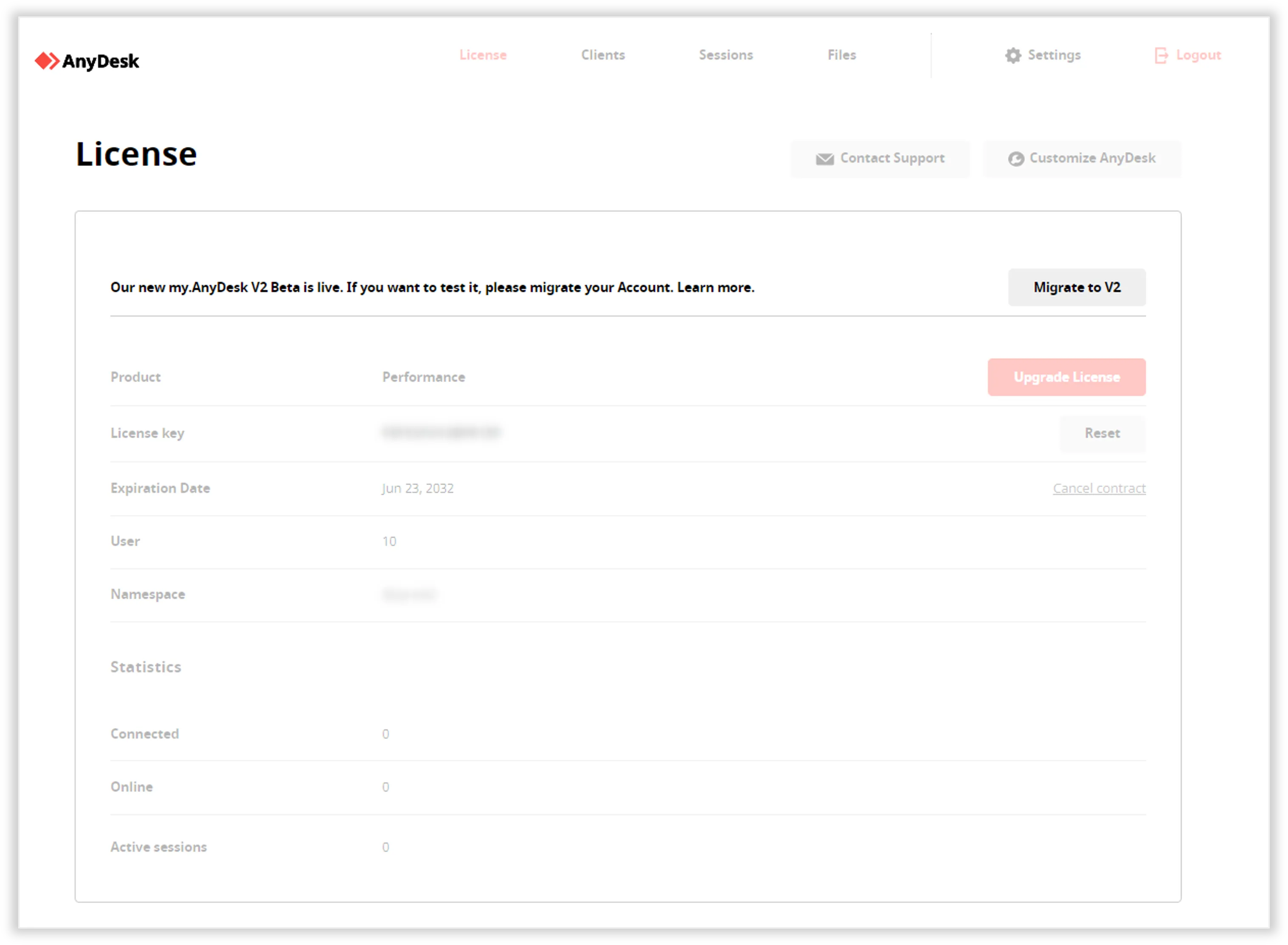
- Open the License tab and click Migrate to V2.
Account migration_Migrate button - On the next page, click Continue.
- Open your email and follow the link to my.anydesk II with a new password for your account.
You can use both my.anydesk I and my.anydesk II even after you migrated your account. However, after the migration, any changes you make in my.anydesk I will not be synchronized to my.anydesk IIand vice versa.
If you have a team or an organization, you will need to set up your team or organization in my.anydesk II.
A management portal where users can check their license information, view and manage AnyDesk clients linked to the account, find more detailed information about all sessions, and more.
A tailored version of AnyDesk that can be configured for specific organizational needs, including branding and functionality.
Click to continue reading
- Published at